


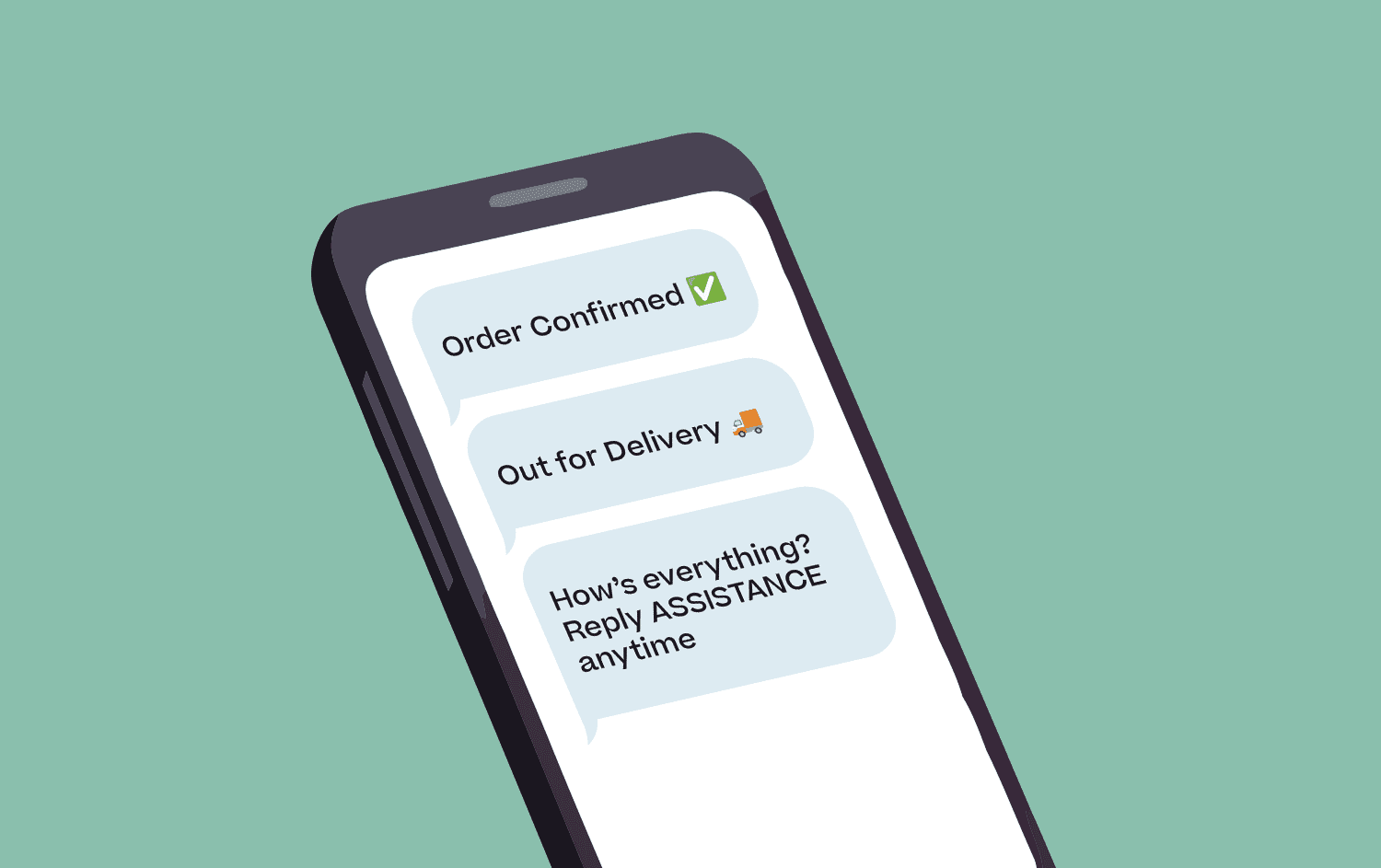
Any contact list can get polluted with “dirty” phone numbers.
For example, in our recent analysis of over 28 million SMS sent by Mobile Text Alerts users between July 26 and August 25, 2026, 9.6% of these messages weren’t able to be delivered.
These delivery issues are often because many of the recipient phone numbers are unreachable or invalid.
And that’s not even including just plain unengaged numbers… contacts that are receiving your messages but never take any action.
All of this is costing you unnecessary message credits each time you send a message (potentially costing actual dollars against your bottom line) .
Today’s field guide will walk you through how to identify and clean up those unhealthy or inactive numbers from your Mobile Text Alerts dashboard.
That way, you can get maximum ROI for your SMS efforts.
Clean-Up Method #1: Remove “Unhealthy” Subscribers
Our analysis found that 4.7% of messages were sent to invalid numbers or landlines.
These numbers can be easily removed from your database using the “Unhealthy Subscribers” report.
Whenever you send a message, Mobile Text Alerts keeps track of the delivery statuses for your recipients.
So we’re able to tell whether a number is unreachable or invalid.
These contacts are considered “unhealthy subscribers,” and the system stores these unhealthy numbers right there in the dashboard.
Navigate to “Analytics” and you’ll find the “Unhealthy Subscribers” tab. Click that to view the report.
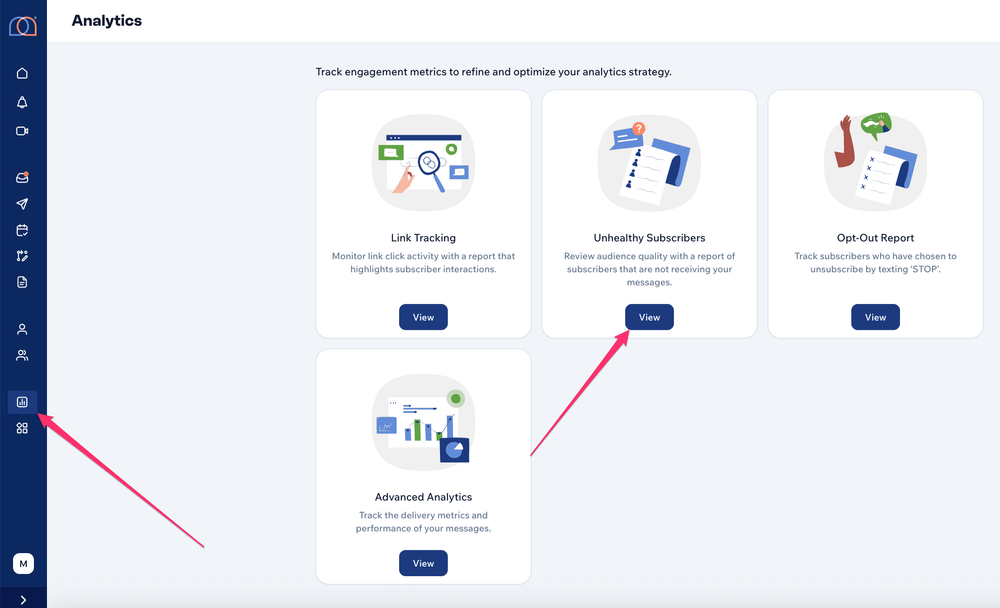
Here you’ll see a list of all your subscribers that are considered “Unhealthy.”
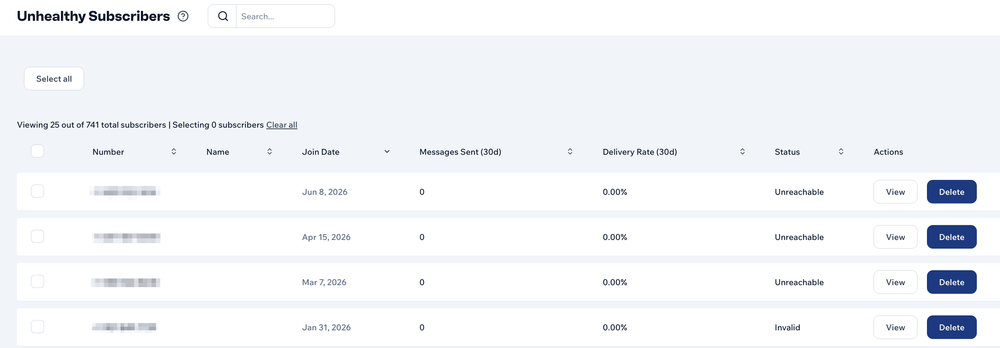
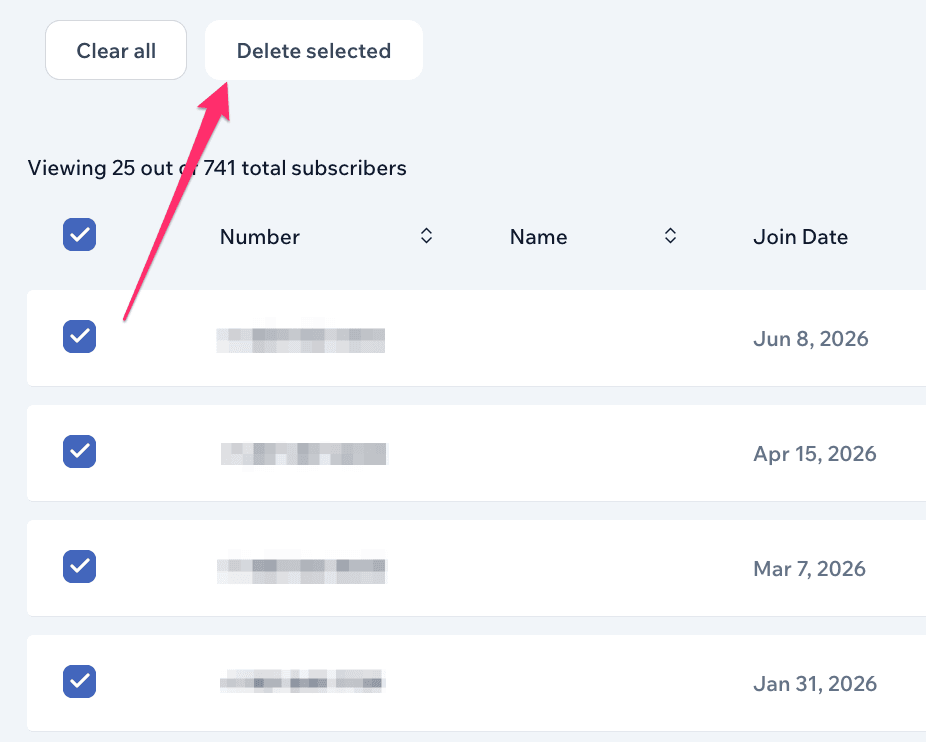
In many cases, you may just want to remove all of these contacts. If that’s the case for you, you can click the “Select all” button, and then click the “Delete selected” button that appears.
However, in some cases you may want to evaluate each contact individually to make sure they are truly “unhealthy” subscribers.
For example, a phone number may have been “unreachable” simply because the device was turned off or the service had temporarily lapsed.
You can analyze how many messages were sent recently and the delivery rate for each individual phone number to determine if they should be deleted or if you might want to keep them in your database.
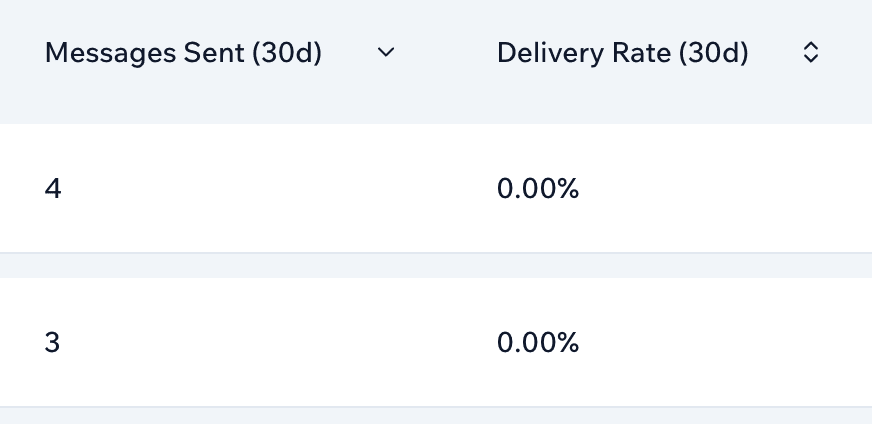
Once you’ve decided which numbers you’d like to remove, you can select those individual numbers and click the “Delete Selected” button.
Clean-Up Method #2: Remove Unengaged Subscribers
In addition to removing invalid or unreachable numbers, you may want to remove or segment subscribers that are unengaged from your messages.
How you define “unengaged” may vary based on your use case, but within the Mobile Text Alerts dashboard you could define it as either (1) not having clicked a link recently or (2) not having replied to a message recently… or both.
So the second SMS clean-up method is to set up a workflow that helps you track or remove these unengaged subscribers – that way, you’re not using up credits by sending them messages.
But first you’ll need to set up an “Inactive” group within your account so that you can have a place for your workflow to organize these subscribers.

Then add a new group and name it something like “Inactive Subscribers.”
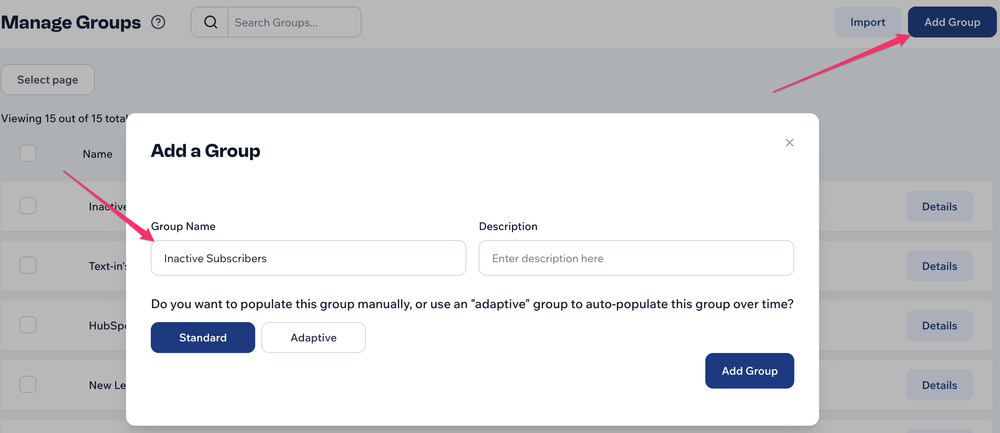
Once that group is created, you need to navigate to “Workflows.”

Then click to add a new workflow.
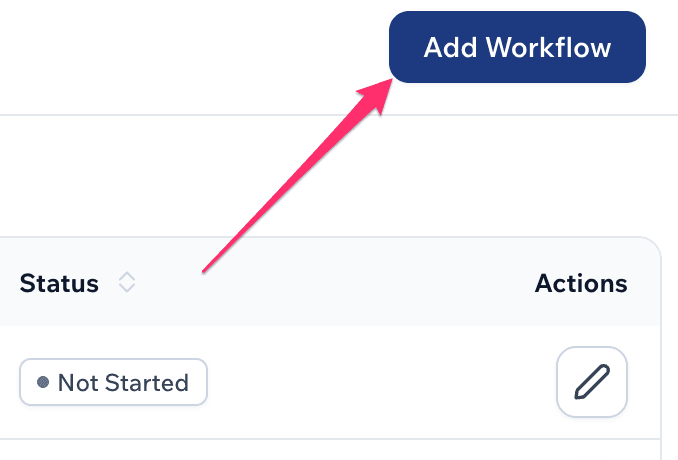
You’ll then need to select a “Trigger” for your workflow.
If you want to just do a one-time check of all your current subscribers, you can choose “Send Immediately” as your trigger.
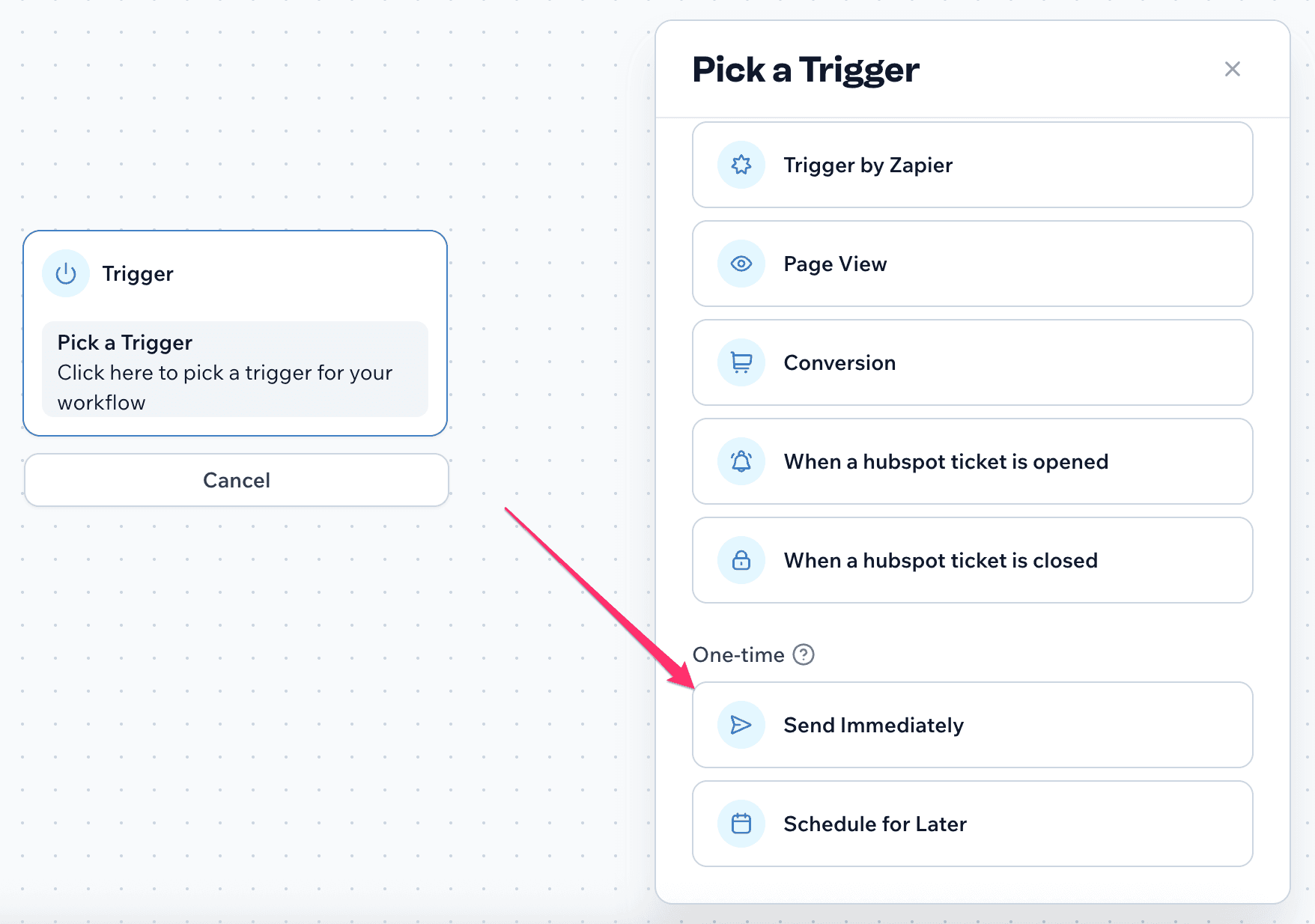
If you want a more ongoing and automated option, you could select the “New Subscriber” trigger so that all new subscribers get a sanity check after, say, a couple months. That way, you can see if new subscribers in particular are truly engaging with your messages, and if not, you could consider removing them from your list.
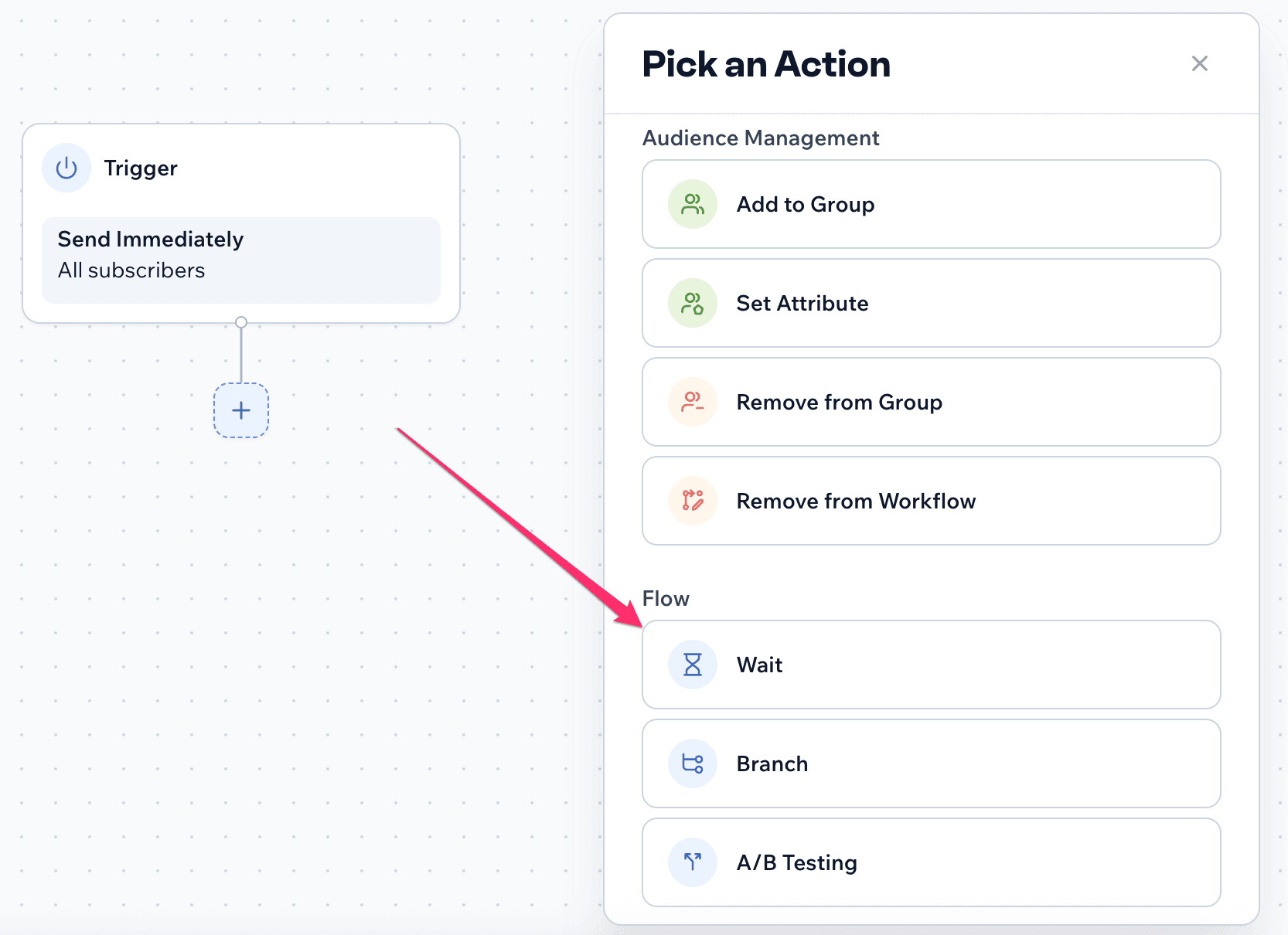
After you’ve selected and confirmed the trigger, add the “Wait” action as the first element in the workflow.
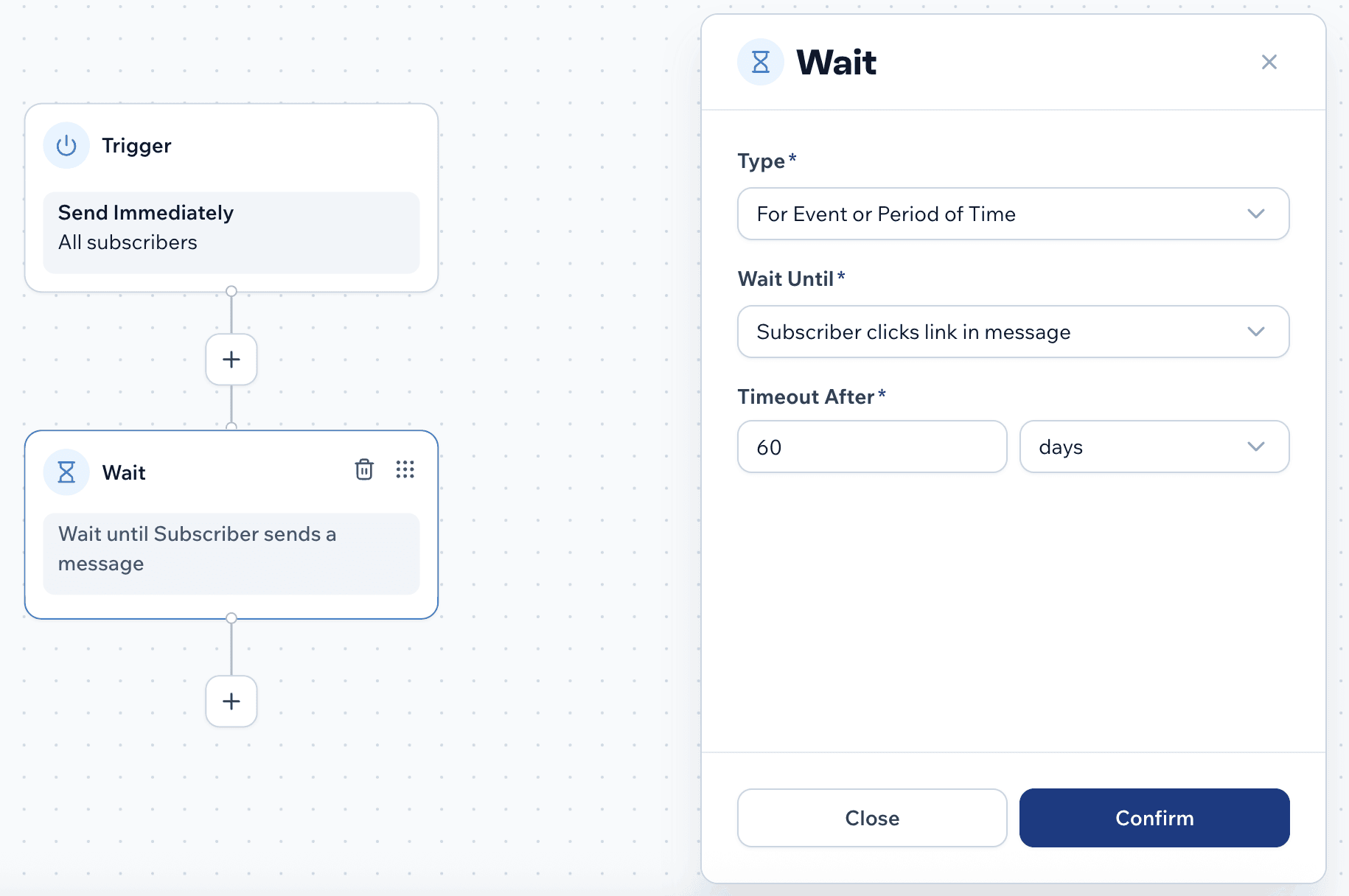
Within the “Wait” action, for the “Type” field you can select “For Event or Period of Time.”
For the “Wait Until” field, select whether you’d like clicking a link or replying to a message to be your metric for determining whether a subscriber is unengaged.
(Note: for tracking people who haven’t replied, it may also be easier to use Adaptive Groups with the “Subscriber Sent” condition.)
And for “Timeout After,” designate how long you’d like to wait before determining whether a subscriber is unengaged. (Say, 60 days.)
After you confirm your “Wait” action, add a “Branch” element to your workflow.
Set “Subscriber event” as the condition for the branch. Then set the “Event” to either clicking a link or replying to a message (depending on what you selected in the previous step). And input the same number of days that you inputted previously (60 days, in our example).
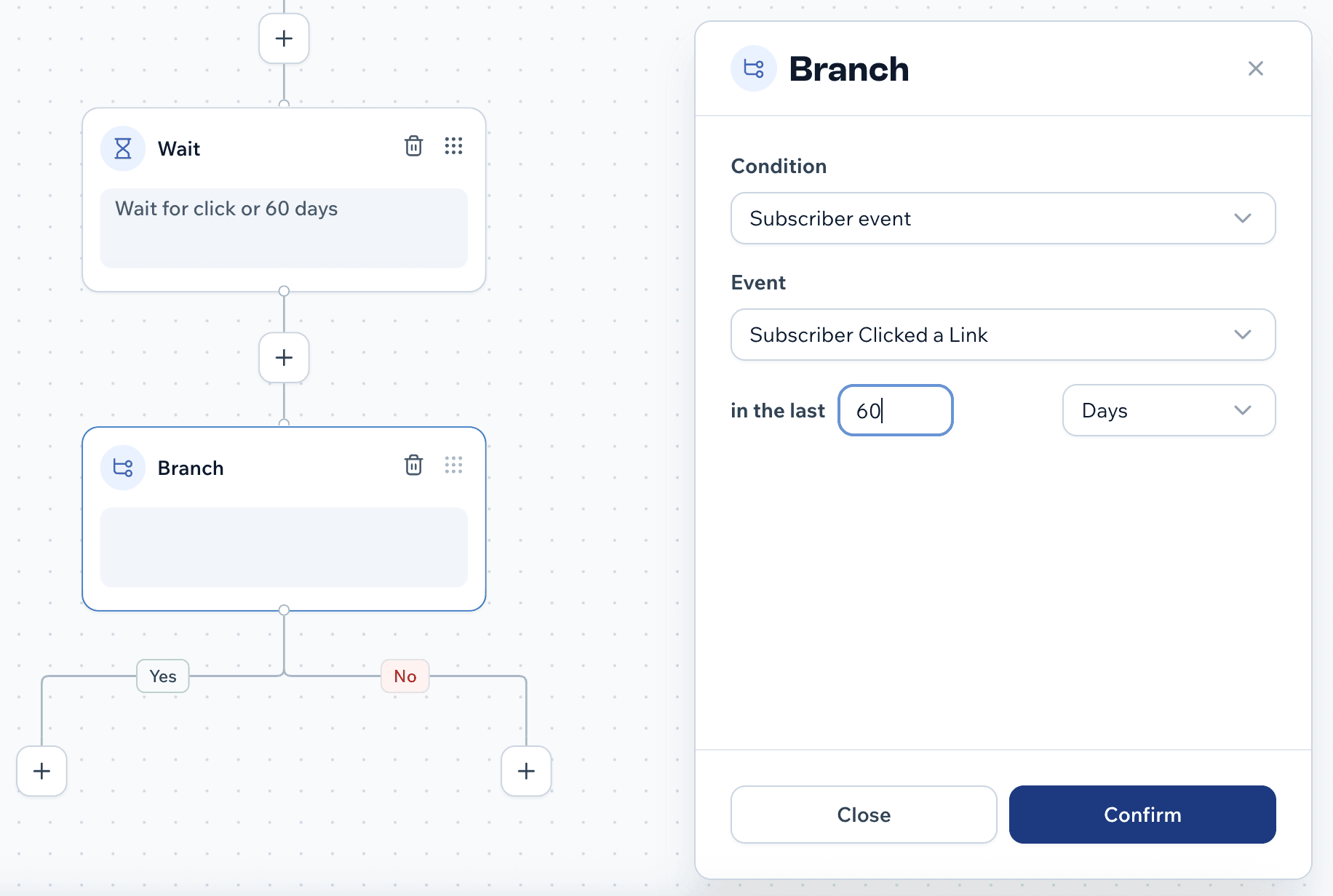
Confirm your branch setup.
Next, under the “No” section of the branch, add an “Add to Group” action and designate your “Inactive” group as the target group.
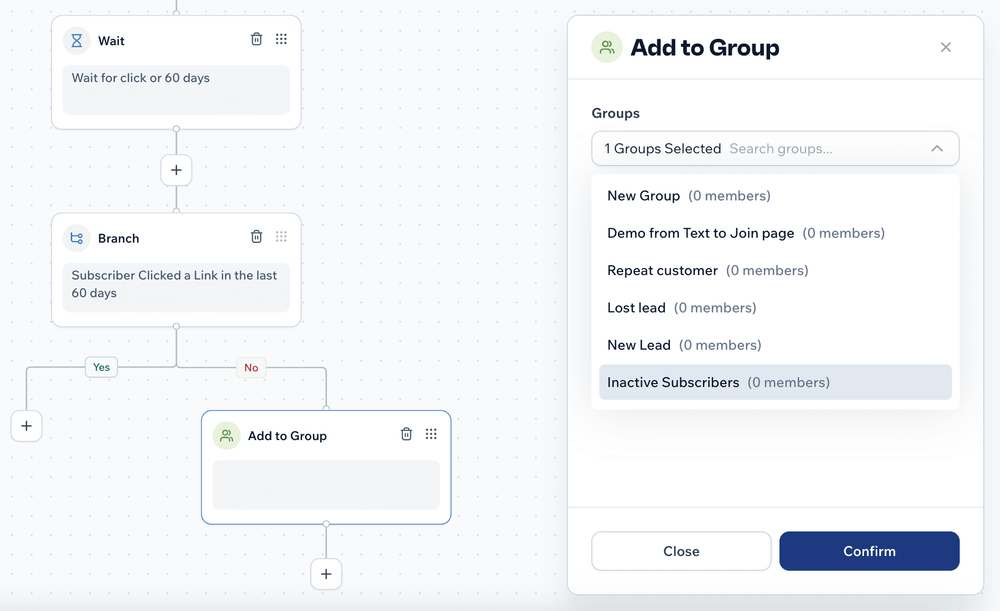
Confirm your branch, and voila!
Once you click to begin your workflow, it will start tracking your subscriber’s activity.
After the designated time period, it will add the unengaged subscribers to your “Inactive” group so that you can easily go through and remove those subscribers or exclude them from future sends.
–
And now you’re equipped with 2 different methods to help you clear your account of unhealthy or unengaged contacts:
- use the “Unhealthy Subscribers” report for a quick sweep of unreachable numbers
- or create a workflow if you want to keep track of inactive subscribers.
As always, don’t hesitate to drop a chat in the site chatbox if you have any questions and our lovely support team will be happy to help!
Author Bio

Sam Pelton is the content director for Mobile Text Alerts, an SMS service that gives businesses an easier way to reach customers and audiences. He has 12 years of experience working with the texting platform in the areas of customer support, quality assurance testing, content creation, copywriting, and marketing strategy. He’s also a father of 7 and loves a good (bad) dad joke. Connect with him on LinkedIn.